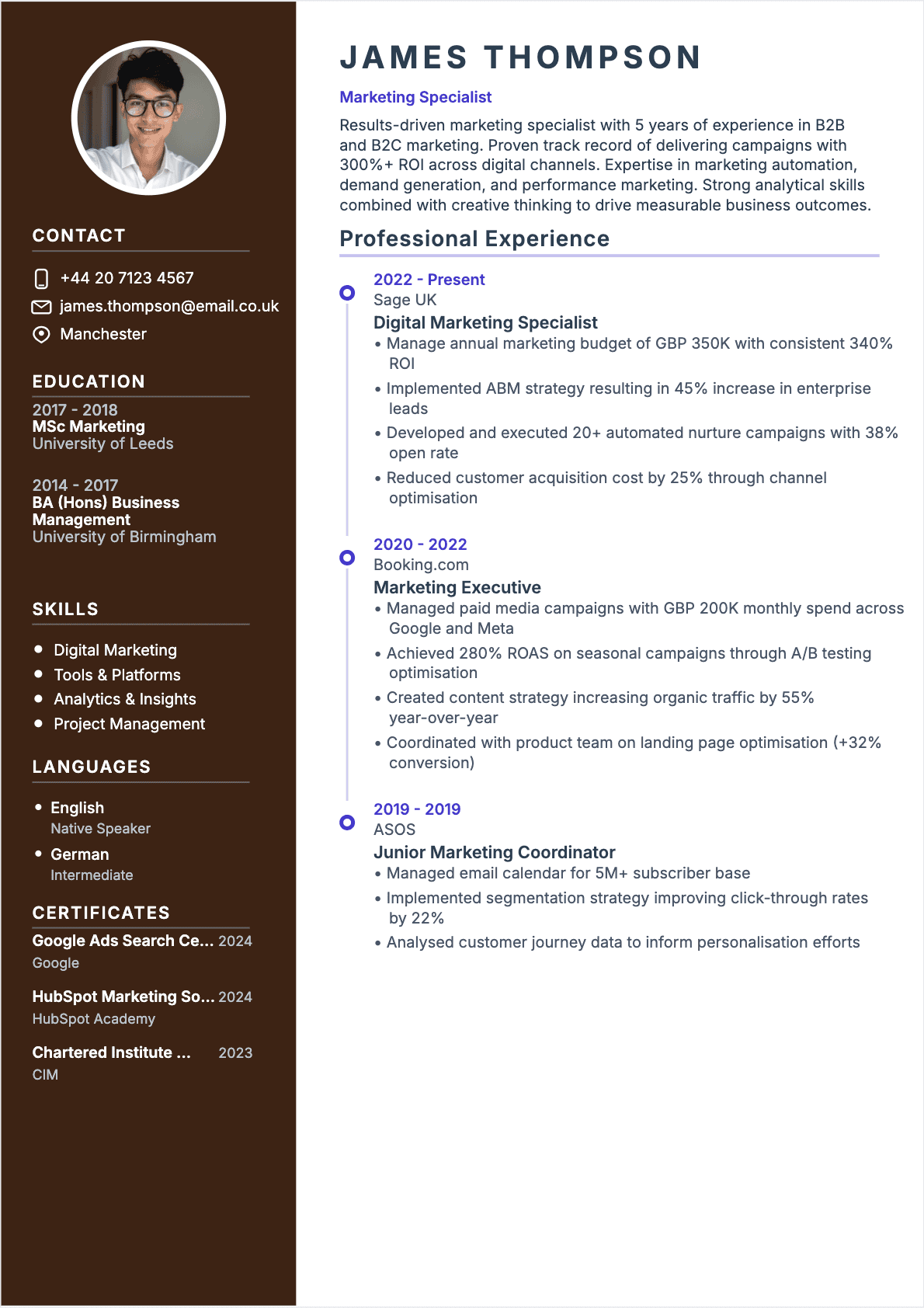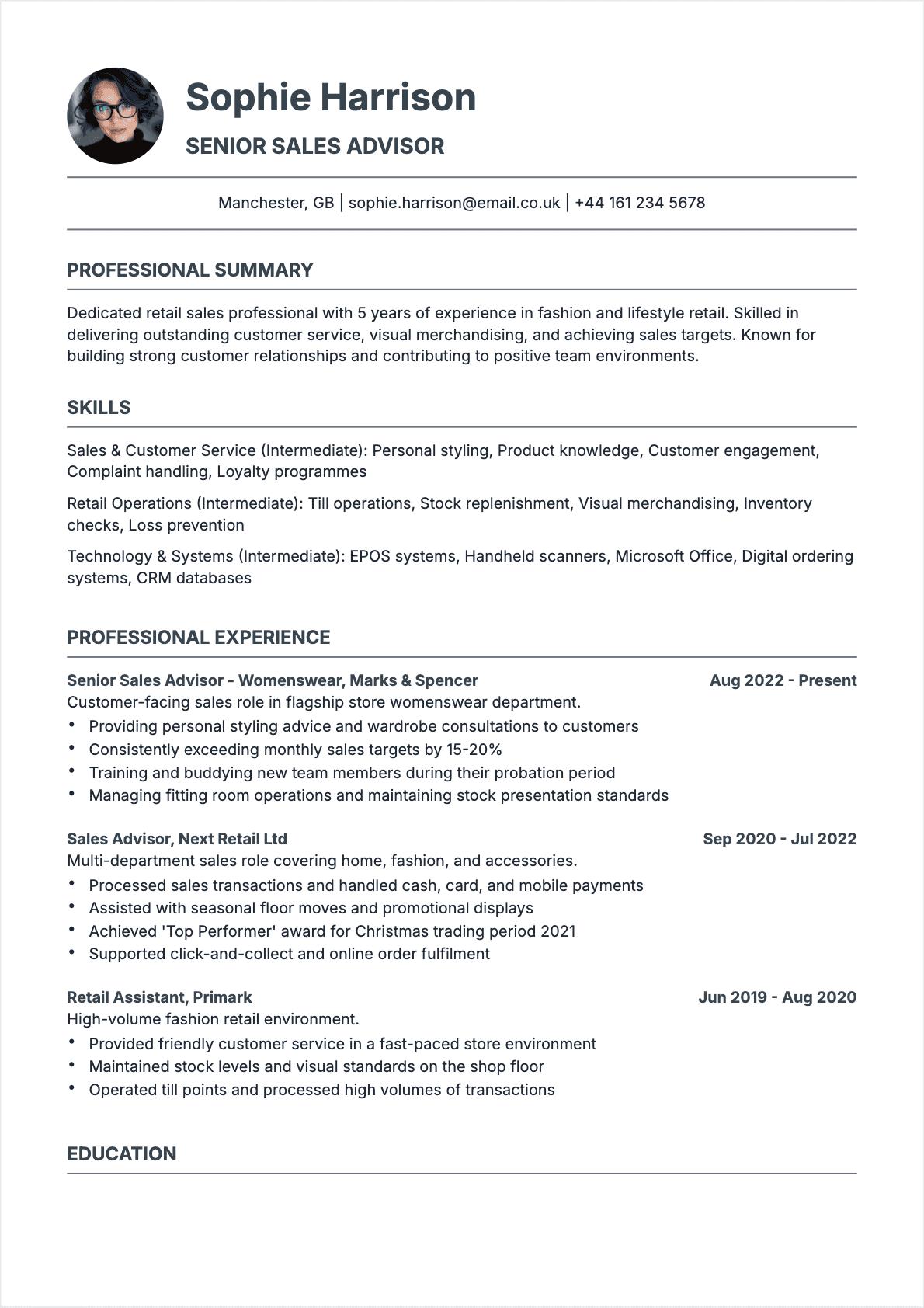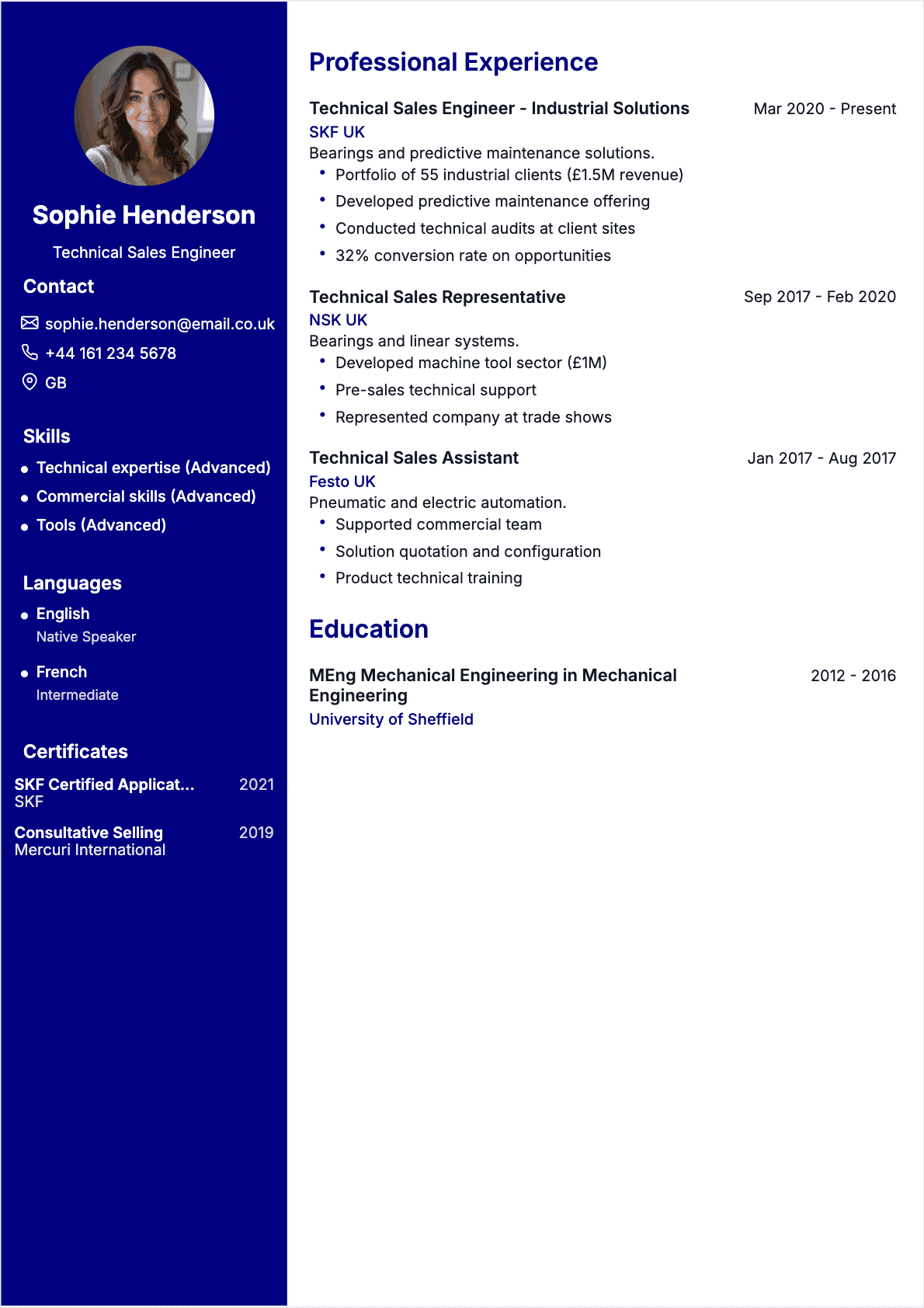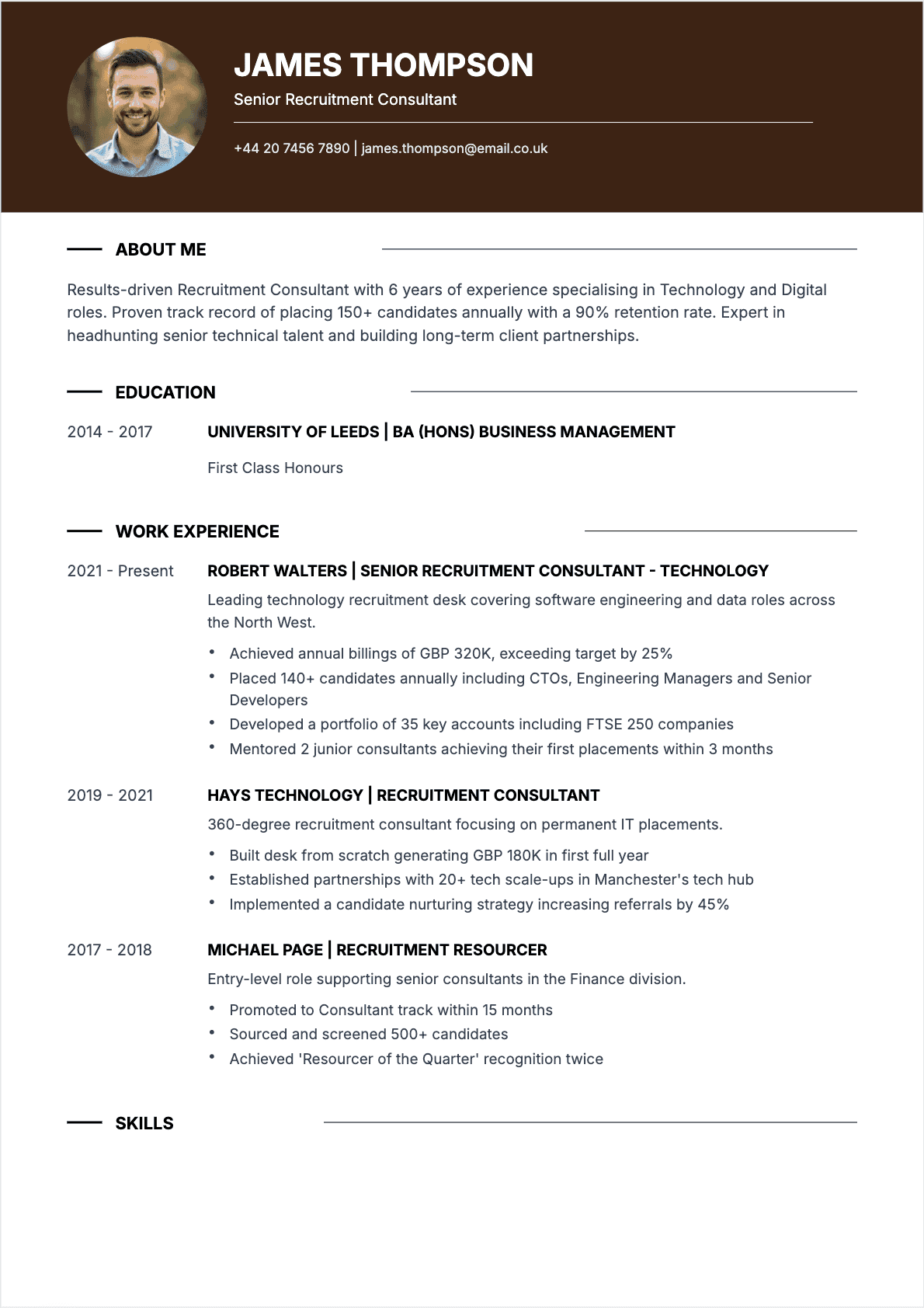

I remember the exact moment LinkedIn stopped being optional for job seekers. It was 2019, and I was leading recruiting at a Series C fintech startup in San Francisco. We had posted a senior product manager opening on three job boards, received over 400 applications, and ultimately hired someone who never applied through any of them. Our CTO found her on LinkedIn, messaged her directly, and she started six weeks later. That hire changed how I thought about the platform forever.
During my twelve years in talent acquisition, first at a recruitment agency placing engineers across the Bay Area, then as head of talent at two venture-backed startups, I watched LinkedIn evolve from a digital Rolodex into the single most powerful tool in the modern job search. Today, over 87% of recruiters use LinkedIn as their primary sourcing channel. More than 65 million people apply for jobs through the platform every week. And yet, the vast majority of users are leaving enormous opportunities on the table because they do not know how to properly upload, optimize, and leverage their resume on LinkedIn.
This guide covers everything: how to upload your resume to LinkedIn, how to build a profile that works in tandem with your resume, how to use LinkedIn's job application features effectively, and how to position yourself so that recruiters come to you. Whether you are actively job hunting or just keeping your options open, the strategies here will give you a measurable advantage in the 2026 job market. 🚀
Why LinkedIn Matters More Than Ever for Job Seekers
Let me put this into perspective with a few numbers that should reshape how you think about your career strategy in 2026:
- 1 billion+ members across 200 countries, with the platform adding roughly 3 new members every second
- 87% of recruiters report using LinkedIn as their primary candidate sourcing tool, ahead of job boards and referrals
- 65 million weekly job applicants use LinkedIn to search for and apply to openings
- 8 people are hired through LinkedIn every minute, according to the platform's own data
- 77% of hiring managers say LinkedIn profiles influence their shortlisting decisions even when candidates apply through other channels
What these numbers tell us is that LinkedIn is no longer a "nice to have." It is the infrastructure of modern hiring. When I was recruiting, I spent at least 60% of my sourcing time on LinkedIn, often more. My inbox was full of LinkedIn InMails, my Boolean searches ran against LinkedIn profiles, and the first thing I did after receiving a promising resume was check the candidate's LinkedIn profile. If the profile was thin, outdated, or inconsistent with their resume, that was a red flag. 🚩
The integration between your resume and your LinkedIn profile is not optional anymore. They need to work together as a cohesive professional narrative. Your resume gets you through the ATS; your LinkedIn profile builds the trust and visibility that make recruiters want to reach out in the first place.
How to Upload Your Resume to LinkedIn (Step by Step)
LinkedIn offers several ways to upload and use your resume on the platform. Each serves a different purpose, and understanding the distinction is important. Here is a complete walkthrough of every method available in 2026. 📝
Method 1: Upload your resume to Easy Apply applications
This is the most common way people use resumes on LinkedIn. When you apply for a job that has the "Easy Apply" button, LinkedIn gives you the option to attach your resume directly.
- Find a job listing on LinkedIn that shows the blue "Easy Apply" button
- Click "Easy Apply" to open the application form
- On the resume step, click "Upload resume" and select your PDF or Word file
- LinkedIn will save this resume to your profile for future Easy Apply submissions
- Review the pre-filled fields (LinkedIn auto-populates some data from your profile), correct any errors, and submit
**Pro tip: **LinkedIn stores your last few uploaded resumes. You can select a previously uploaded version or upload a new one for each application. Since you should be tailoring your resume to each job posting, I recommend uploading a fresh, customized version for every application rather than relying on a generic saved copy.
Method 2: Add your resume to your LinkedIn profile's Featured section
This is an underused feature that gives your resume permanent visibility on your profile. Anyone who visits your profile, including recruiters, can download it directly.
- Go to your LinkedIn profile and click "Add profile section"
- Under "Recommended," select "Add featured"
- Click the "+" icon, then select "Add media"
- Upload your resume as a PDF (this ensures formatting is preserved and it displays cleanly)
- Add a title like "My Current Resume - 2026" and a brief description
- Click "Save" and your resume will appear as a visual card in your Featured section
**When to use this: **If you are actively job searching and want to signal availability. If you are passively open, you might skip this to maintain discretion with your current employer.
Method 3: Use your resume to build or update your LinkedIn profile
LinkedIn can parse an uploaded resume and auto-fill your profile sections, including work experience, education, and skills. This is particularly useful when you are setting up a new profile or doing a major overhaul.
- Navigate to "Settings & Privacy" then "Data privacy"
- Look for the option under "Job seeking preferences" to import your resume
- Upload your most comprehensive resume (your "master" version with all experience)
- LinkedIn will suggest updates to your profile sections based on the parsed content
- Review every suggestion carefully before accepting, as the parser does not always get formatting right
This feature saves significant time, but never accept the auto-parsed content blindly. LinkedIn's parser can misinterpret dates, split job titles incorrectly, or miss context. Always review and edit each section manually after the import. For guidance on building a strong foundation for this step, see our complete guide to writing a resume. ✅
Optimize Your LinkedIn Profile to Match Your Resume

LinkedIn profile optimization areas - en
Uploading your resume is only the first step. The real power comes from aligning your LinkedIn profile with your resume so that both documents tell a consistent, compelling story. When I was reviewing candidates, a mismatch between resume and LinkedIn was one of the fastest ways to lose my trust. Different job titles, inconsistent dates, conflicting company names: these signal carelessness at best and dishonesty at worst. 🔍
Here is how to optimize each section of your LinkedIn profile:
Headline: your most valuable real estate
Your LinkedIn headline is the single most important line on your entire profile. It appears in search results, in recruiter dashboards, in every comment and post you make, and in connection requests. The default headline LinkedIn generates (your current job title at your current company) is almost never optimal.
**Formula: **[Current Title] | [Key Expertise] | [Value Proposition or Industry]
Examples:
- "Senior Product Manager | B2B SaaS | Driving growth from Series B to IPO"
- "Full-Stack Engineer | React, Node.js, AWS | Building scalable fintech platforms"
- "Marketing Director | Demand Generation & Brand Strategy | 12+ years in health tech"
Your headline should incorporate keywords that recruiters search for. When I was sourcing candidates, I ran Boolean searches on LinkedIn with specific title and skill combinations. If your headline does not contain the terms recruiters are searching for, you will not appear in their results, regardless of how strong your profile is.
About section: your expanded professional summary
Think of the LinkedIn About section as the extended version of your resume's professional summary. While your resume summary needs to be 3-5 lines, your About section can be a full narrative of 2,000+ characters.
Structure it in three parts:
- **The hook (2-3 sentences): **Open with a compelling statement that captures attention and establishes your expertise
- **The body (1-2 paragraphs): **Detail your career trajectory, key accomplishments, and areas of expertise. Use specific metrics wherever possible
- **The call to action (1-2 sentences): **Tell the reader what you are looking for and how to reach you
Unlike your resume, the About section should be written in first person. This is a space where personality and voice matter. A recruiter who reads your About section should get a sense of who you are, not just what you have done.
Experience section: mirror your resume, then expand
Your LinkedIn experience section should contain every role that appears on your resume, with matching titles, companies, and dates. But LinkedIn gives you more room, so take advantage of it:
- Include 5-8 bullet points per role instead of the 3-5 on your resume
- Add context about the company if it is not well known (size, industry, funding stage)
- Link to projects, publications, or media mentions within each role
- Use rich media: attach presentations, reports, or portfolio pieces to individual positions
**Critical rule: **Job titles and employment dates on your LinkedIn MUST match your resume exactly. Recruiters routinely cross-reference both documents, and any discrepancy triggers a red flag that can disqualify you from consideration.
Skills and endorsements: keyword fuel for search
LinkedIn allows you to list up to 100 skills, and the order matters. Your top 3 skills are displayed prominently and carry the most weight in LinkedIn's search algorithm.
- Place your most marketable, in-demand skills in the top 3 positions
- Include a mix of hard skills (Python, Salesforce, financial modeling) and soft skills (strategic planning, cross-functional leadership)
- Request endorsements from colleagues and managers for your top skills
- Remove outdated or irrelevant skills that dilute your profile focus
For a deep dive into which skills have the most impact, read our guide on the best skills to put on a resume. The principles apply equally to LinkedIn.
LinkedIn Resume vs. Traditional Resume: Key Differences
Your LinkedIn profile and your traditional resume serve different purposes and follow different rules. Understanding these differences is critical for maximizing the impact of both. 📊
| Element | Traditional Resume | LinkedIn Profile |
|---|---|---|
| Length | 1-2 pages maximum | No limit; comprehensive is better |
| Tone | Third person, formal | First person, conversational |
| Customization | Tailored per application | One version for all viewers |
| Keywords | Matched to specific job posting | Broad coverage of industry terms |
| Media | None (text and layout only) | Images, videos, documents, links |
| Photo | Discouraged in US/UK | Essential; profiles with photos get 21x more views |
| Audience | Specific hiring manager | Broad: recruiters, peers, clients |
| Updates | Per application | Ongoing; activity signals engagement |
The key takeaway: your resume is a precision tool designed for one specific job application. Your LinkedIn profile is a broad-spectrum beacon designed to attract opportunities from multiple directions. Both are essential, and they complement rather than replace each other.
Before and After: LinkedIn Profile Transformations That Get Results

LinkedIn profile before and after - en
Nothing illustrates the impact of optimization better than real before-and-after examples. Here are transformations based on composites of candidates I have coached, showing exactly what changes and why it matters. ✨
Example 1: Marketing manager seeking a director role
Before headline:
"Marketing Manager at Acme Corp"
After headline:
"Marketing Director | Demand Generation & Brand Strategy | Scaled pipeline from $2M to $11M ARR"
Before summary (first two lines):
"Experienced marketing professional with a passion for digital marketing and brand building. Looking for new opportunities."
After summary (first two lines):
"I have spent the last 8 years turning underperforming marketing engines into revenue machines. At Acme Corp, I inherited a team of 3 with a $200K pipeline and grew it to a team of 9 generating $11M in annual pipeline within 30 months."
The before version is passive and generic. The after version is specific, quantified, and tells a story of impact. When I was sourcing marketing leaders, profiles like the "after" version would immediately go into my shortlist. The "before" version would not even register during a scroll through search results.
Example 2: Software engineer transitioning to engineering management
Before headline:
"Software Engineer at TechStartup Inc."
After headline:
"Engineering Manager | Full-Stack (React, Go, AWS) | Building and scaling high-performing engineering teams"
Before experience bullet:
"Responsible for developing features and fixing bugs in the main product."
After experience bullet:
"Led a squad of 6 engineers through the rebuild of the core payment processing module, reducing transaction failures by 73% and improving checkout completion rates from 81% to 94%."
Notice how the "after" version positions the candidate for their target role (engineering management) rather than their current role (individual contributor). This is a technique I call "aspirational alignment," and it is one of the most powerful things you can do on LinkedIn when you are looking to level up.
Using LinkedIn's Job Application Features Effectively
LinkedIn has built an entire ecosystem around job applications, and knowing how to use each feature gives you a significant edge. Here is what matters most in 2026. 🎯
Easy Apply: speed with strategy
Easy Apply lets you submit an application with just a few clicks, using your LinkedIn profile and an uploaded resume. It is convenient, but convenience creates a trap: because it is so easy, these postings receive an enormous volume of applications. Standing out requires extra effort.
- **Always upload a tailored resume **rather than relying on your default saved version. Easy Apply lets you choose which resume to attach for each application.
- **Fill in all optional fields. **Many Easy Apply forms include optional questions. Candidates who answer them demonstrate higher interest and give recruiters more data to work with.
- **Follow up with a connection request. **After applying via Easy Apply, find the recruiter or hiring manager listed on the job posting and send a personalized connection request mentioning your application.
Job Alerts: let opportunities find you
Setting up job alerts ensures you are among the first applicants when relevant roles are posted. LinkedIn data shows that applicants who apply within the first 24 hours are 3x more likely to get a response than those who apply later.
- Set alerts for your target job titles, not just companies
- Use specific keywords rather than broad categories (e.g., "senior product manager B2B SaaS" instead of "product manager")
- Enable notifications for both "Jobs" and "Recruiter activity" in companies you follow
- Review and refine your alerts every two weeks to keep results relevant
Open to Work: visibility with control
The "Open to Work" feature signals to recruiters that you are available. LinkedIn offers two visibility options:
- **Recruiters only: **Only LinkedIn Recruiter users can see your "Open to Work" status. This is the safer option if you are currently employed and do not want your employer to know.
- **All LinkedIn members: **The green "Open to Work" frame appears on your profile photo. This maximizes visibility but is public.
When you enable Open to Work, specify your target job titles, locations (including remote), start date, and preferred job types. The more specific you are, the more relevant the recruiter outreach you will receive. I recommend the "Recruiters only" setting for anyone currently employed, to avoid any awkwardness with your current team.
How Recruiters Actually Search for Candidates on LinkedIn
Understanding how recruiters use LinkedIn to find candidates is the key to positioning yourself to be found. During my recruiting career, I spent hours every day running searches on LinkedIn Recruiter, and the mechanics of how those searches work should inform every decision you make about your profile. 💪
Boolean search strings
Recruiters use Boolean operators to build precise search queries. A typical search might look like:
"product manager" AND (SaaS OR "B2B") AND ("Series B" OR "Series C") NOT director
This means your profile needs to contain the exact phrases recruiters are searching for. If your headline says "PM" instead of "Product Manager," you will not appear in results for "product manager." If your profile does not mention "SaaS" anywhere, you will be invisible to every recruiter searching for SaaS experience.
What recruiters filter on
LinkedIn Recruiter allows filtering by:
- Current and past job titles
- Current and past companies
- Location (including willingness to relocate)
- Industry
- Years of experience
- Education (school name, degree type)
- Skills (from your Skills section)
- Open to Work status
- Activity level (how recently you were active on LinkedIn)
**Activity level is a hidden advantage. **LinkedIn Recruiter prioritizes profiles that are active on the platform. Posting, commenting, sharing articles, and updating your profile all signal that you are engaged and reachable. A dormant profile gets ranked lower in search results, even if it has stronger credentials. I always filtered for candidates who had been active in the last 30 days, because they were far more likely to respond to outreach.
Common LinkedIn Resume Mistakes That Cost You Opportunities
After reviewing thousands of LinkedIn profiles during my recruiting career, these are the mistakes I saw most frequently, and the ones that had the biggest negative impact on candidates. 🚫
- **Inconsistent information between resume and LinkedIn. **Different job titles, mismatched dates, or companies listed on one but not the other. This is the number one trust killer. Recruiters cross-reference both documents, and discrepancies suggest either carelessness or dishonesty.
- **No profile photo or an unprofessional one. **LinkedIn data shows profiles with a professional headshot receive 21x more profile views and 36x more messages. A selfie, a cropped group photo, or no photo at all significantly reduces your visibility and credibility.
- **Using the default headline. **"Software Engineer at Company X" tells recruiters nothing about your specialization, your level, or your value. It is the LinkedIn equivalent of titling your resume "Resume."
- **Empty or generic About section. **"Passionate professional looking for new challenges" is the About section equivalent of dead air. Every recruiter has read that sentence ten thousand times. It communicates nothing.
- **Neglecting the Skills section. **LinkedIn's search algorithm weights your Skills section heavily. If you have fewer than 20 skills listed, you are handicapping your search visibility.
- **Never engaging with content. **A profile with no posts, no comments, and no shares looks abandoned. Recruiters filter for active users, and LinkedIn's algorithm rewards engagement with higher search ranking.
- **Uploading the same generic resume for every Easy Apply application. **Easy Apply stores your uploaded resumes, and the temptation to reuse the same file is strong. But a generic resume will always score lower in ATS screening than a tailored one. Take the extra five minutes.
- **Ignoring the Featured section. **This section sits near the top of your profile and is prime real estate for showcasing your resume, portfolio, publications, or key projects. Leaving it empty is a missed opportunity.
For more mistakes to avoid, see our article on the top 10 most common resume mistakes.
LinkedIn Resume Optimization Checklist for 2026

LinkedIn profile optimization checklist - en
Before you consider your LinkedIn presence complete, run through this checklist. I developed it over years of coaching job seekers, and it covers everything that actually moves the needle. 📝
Profile completeness
- Professional headshot uploaded (clear face, neutral background, appropriate attire)
- Custom headline written with target keywords (not the default)
- About section completed with hook, body, and call to action
- All current and past positions listed with descriptions and achievements
- Education section filled in with degrees, institutions, and graduation years
- At least 30 skills added, with top 3 strategically ordered
- Featured section populated with your resume, portfolio, or key work samples
- Custom LinkedIn URL created (linkedin.com/in/yourname)
Resume and profile alignment
- Job titles on LinkedIn exactly match your resume
- Employment dates are consistent across both documents
- Company names are spelled identically
- Key accomplishments appear in both places (LinkedIn can have more detail)
- Skills listed on your resume appear in your LinkedIn Skills section
Job search readiness
- "Open to Work" enabled with correct preferences (title, location, job type)
- Job alerts set for target roles and companies
- At least one tailored resume uploaded and ready for Easy Apply
- Connection requests sent to recruiters at target companies
- Profile activity maintained: at least 2-3 engagements per week (posts, comments, shares)
Advanced LinkedIn Strategies for the 2026 Job Market
Once your profile is optimized and your resume is uploaded, these advanced strategies will amplify your visibility and accelerate your job search.
Content creation as a career accelerator
Publishing content on LinkedIn is the single most effective way to build professional visibility. You do not need to be a thought leader or an influencer. You just need to share genuine insights from your work.
- **Write one post per week **about a lesson learned, a challenge overcome, or an industry observation. Even 150 words is enough.
- **Comment thoughtfully on others' posts. **A substantive comment on a hiring manager's post puts your name and headline directly in front of them.
- **Share articles with your take. **Reposting without commentary adds little value. Add 2-3 sentences of your own perspective to every share.
- **Use relevant hashtags. **3-5 hashtags per post help your content reach people outside your network
I have seen candidates land interviews purely because a hiring manager saw their LinkedIn post, clicked through to their profile, and was impressed by what they found. Content creation is networking at scale. 🚀
Strategic networking with recruiters and hiring managers
Do not wait for recruiters to find you. Be proactive:
- Identify 10-15 target companies and find their recruiters and hiring managers on LinkedIn
- Send personalized connection requests that reference something specific, a recent company announcement, a shared connection, or a post they published
- After connecting, send a brief follow-up message introducing yourself and expressing interest in future opportunities
- Engage with their content consistently before and after connecting
When I was recruiting, the candidates who stood out were the ones who had already engaged with our company's content before applying. It showed genuine interest, and it made their name familiar when their application came through.
Leverage LinkedIn's AI and analytics tools
LinkedIn has invested heavily in AI-powered features that benefit job seekers:
- **Resume review: **LinkedIn offers AI-based feedback on your uploaded resume, highlighting areas for improvement
- **Job match scoring: **For many listings, LinkedIn shows how your profile compares to the job requirements, identifying skill gaps
- **Profile analytics: **Track who is viewing your profile, which search terms are leading people to you, and how your profile views trend over time
- **AI-assisted writing: **LinkedIn's AI can help draft About sections, headline variations, and even post content
Use these tools as starting points, but always review and personalize the output. AI-generated content that is accepted without editing tends to sound generic and loses the authentic voice that makes profiles memorable. For more on using AI effectively in your job search, see our guide to AI resume builders.
LinkedIn for Different Career Stages
Your LinkedIn strategy should evolve with your career. What works for a new graduate is different from what works for a senior executive. Here is how to adapt your approach. 🎓
Recent graduates and early career
- Lead with education, certifications, and internships in both your resume and LinkedIn profile
- Use your headline to signal your target role, not just your current status (e.g., "Aspiring Data Analyst | Python, SQL, Tableau | NYU '26" instead of "Recent Graduate")
- Request recommendations from professors, internship supervisors, and project collaborators
- Join LinkedIn groups in your target industry and engage actively
- Feature academic projects, capstone presentations, or personal portfolio pieces in your Featured section
Mid-career professionals
- Emphasize progression and impact in your experience section
- Use your headline to highlight your specialization and the value you bring
- Publish content that demonstrates your expertise and positions you as a subject matter expert
- Maintain an updated skills section that reflects current market demand, not just legacy tools
- Keep your resume and LinkedIn synchronized whenever you change roles, add certifications, or complete significant projects
Senior executives and leadership
- Your LinkedIn About section should read like a leadership narrative, not a skills list
- Focus on organizational impact: revenue growth, market expansion, team building, culture transformation
- Use LinkedIn articles (long-form posts) to share insights and build thought leadership
- Request recommendations from board members, C-suite peers, and direct reports
- Consider a two-page resume uploaded to your Featured section that covers 15-20 years of executive experience
For resume structure guidance at every level, explore our resume examples organized by industry and experience level.
Putting It All Together: Your LinkedIn Action Plan
Here is the step-by-step process I walk my career coaching clients through. Follow this sequence, and you will have a fully optimized LinkedIn presence in about two hours. ⏰
- **Update your resume first (45 min). **Start with your resume, not your LinkedIn profile. Your resume is the foundation. Make sure it is current, quantified, and tailored to your target role. Use our resume writing guide if you need a refresher.
- **Align your LinkedIn profile (30 min). **Update your headline, About section, experience, education, and skills to match your resume. Ensure titles, dates, and companies are identical.
- **Upload your resume (5 min). **Add your resume to the Featured section (if actively searching) and have it ready for Easy Apply submissions.
- **Optimize for search (10 min). **Add 30+ skills, request endorsements for your top 5, and ensure your headline contains searchable keywords.
- **Enable job search features (5 min). **Turn on "Open to Work" with your preferences, set up job alerts for target roles, and follow 10-15 target companies.
- **Build your network (15 min). **Send 10-15 personalized connection requests to recruiters and hiring managers at target companies.
- **Start engaging (10 min). **Comment on 3-5 posts from people in your target industry. Share one post with your own perspective. Schedule this as a recurring weekly activity.
The candidates who succeed on LinkedIn are not the ones with the most impressive credentials. They are the ones who treat their LinkedIn presence as an active, living system that works for them around the clock. Your profile is your 24/7 recruiter. Your resume is the document that closes the deal. Together, they are the most powerful combination in the modern job search.
LinkedIn has become the backbone of professional hiring. A strong resume paired with an optimized LinkedIn profile gives you a compounding advantage: your resume gets you through ATS filters and into interview shortlists, while your LinkedIn profile builds the visibility, credibility, and network connections that create opportunities you never even applied for.
Here are the core principles to remember:
- **Upload a tailored resume **for every Easy Apply application, and keep a master version in your Featured section if actively searching
- **Align your LinkedIn profile and resume **so that titles, dates, and achievements are consistent across both
- **Optimize your headline and About section **with keywords that recruiters actually search for
- **Stay active on the platform **through posting, commenting, and engaging with content in your industry
- **Use LinkedIn's tools **including job alerts, Open to Work, and profile analytics to maximize your visibility
- **Tailor your approach **to your career stage, whether you are a new graduate or a senior executive
**Ready to build the resume that powers your LinkedIn presence? **Create your professional resume with our targeted resume guide, or explore resume examples tailored to your industry and experience level. 🌟