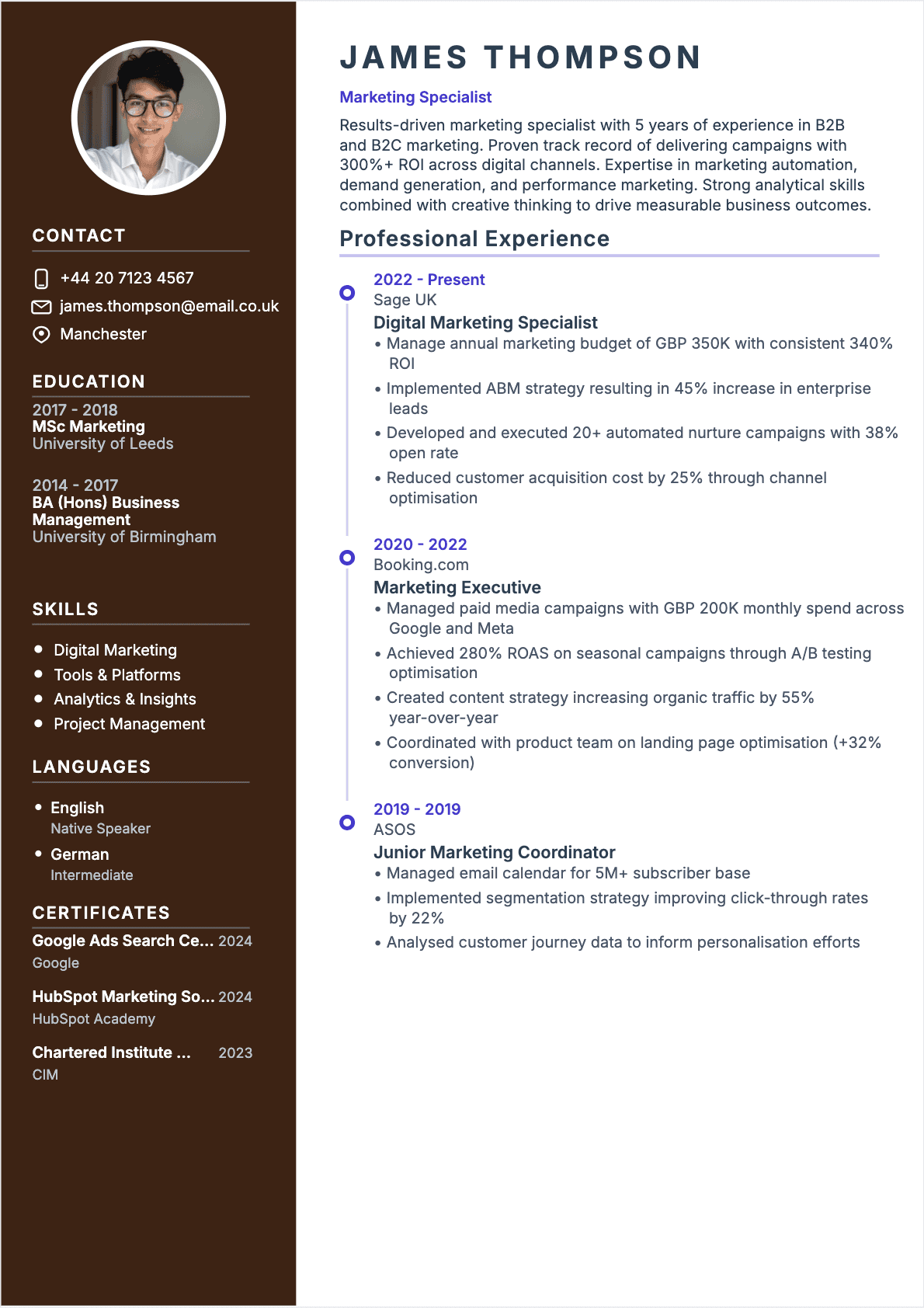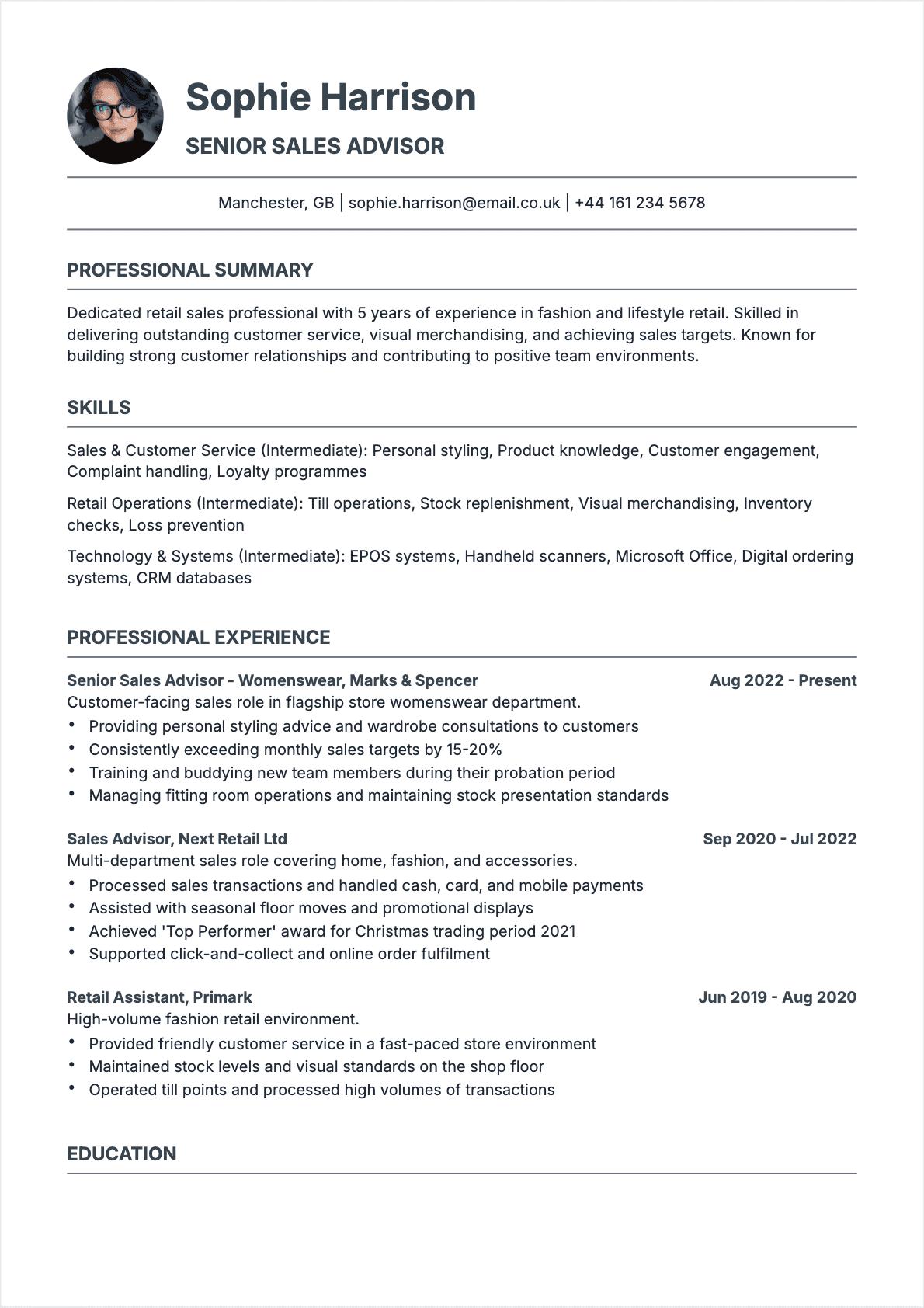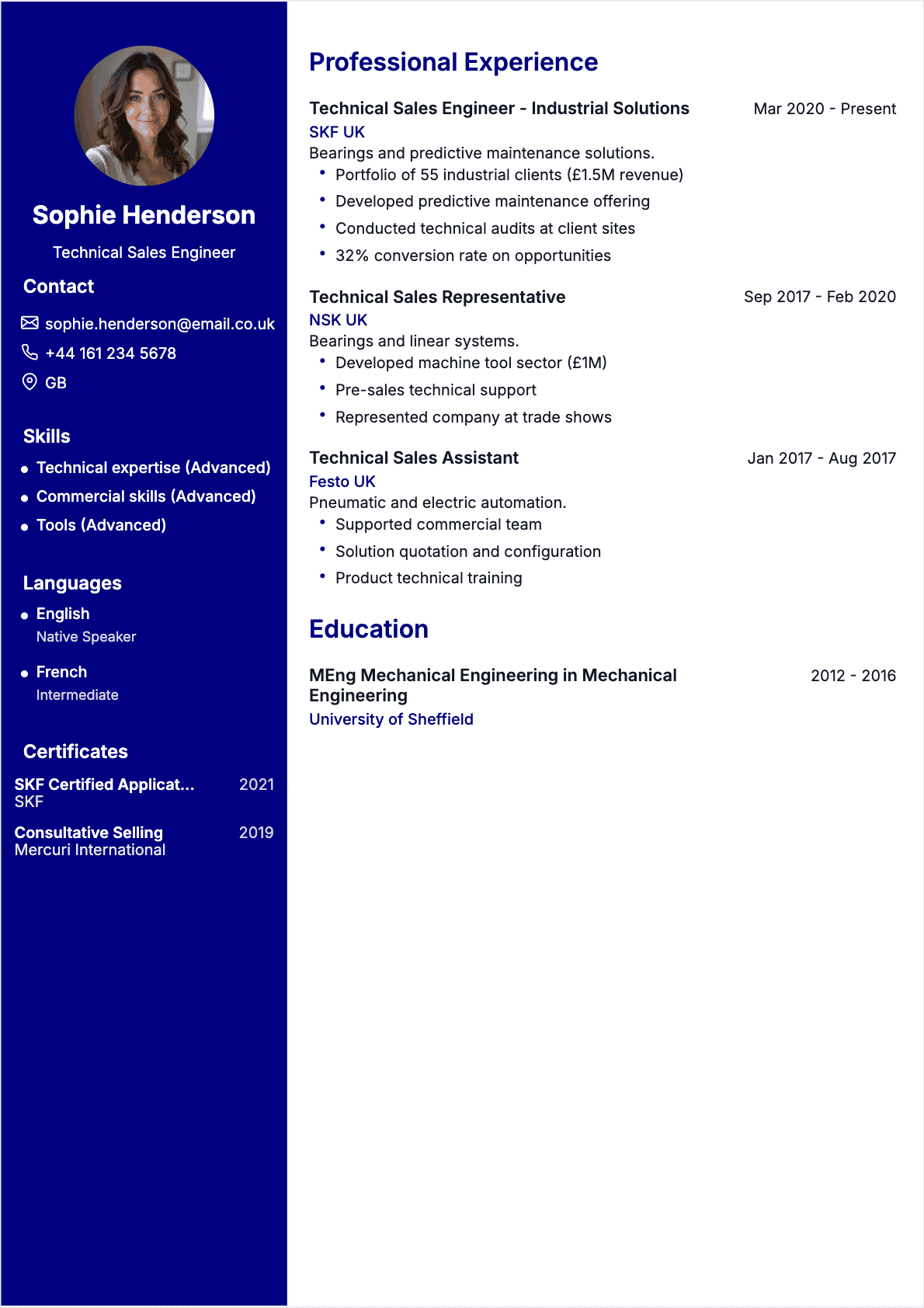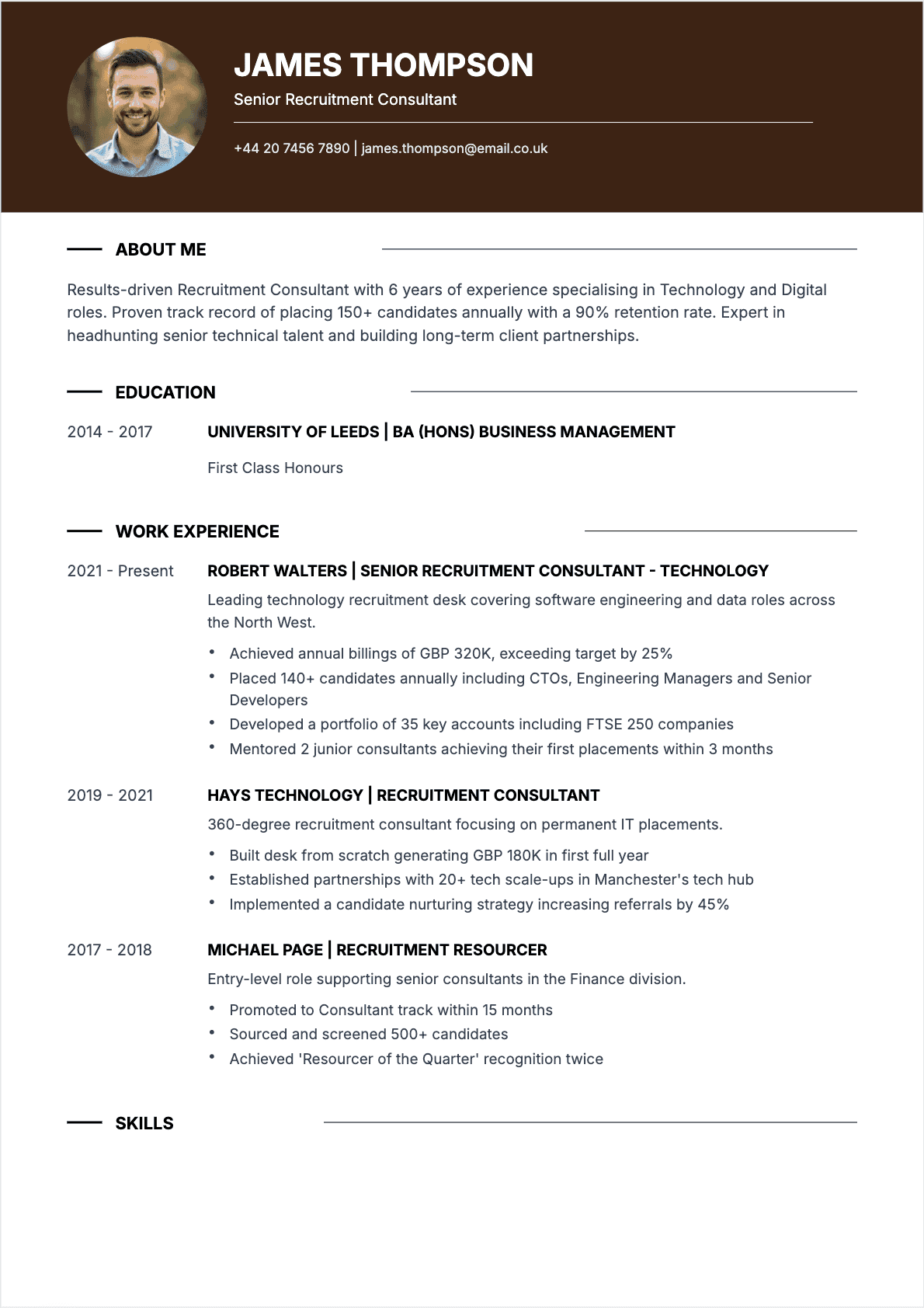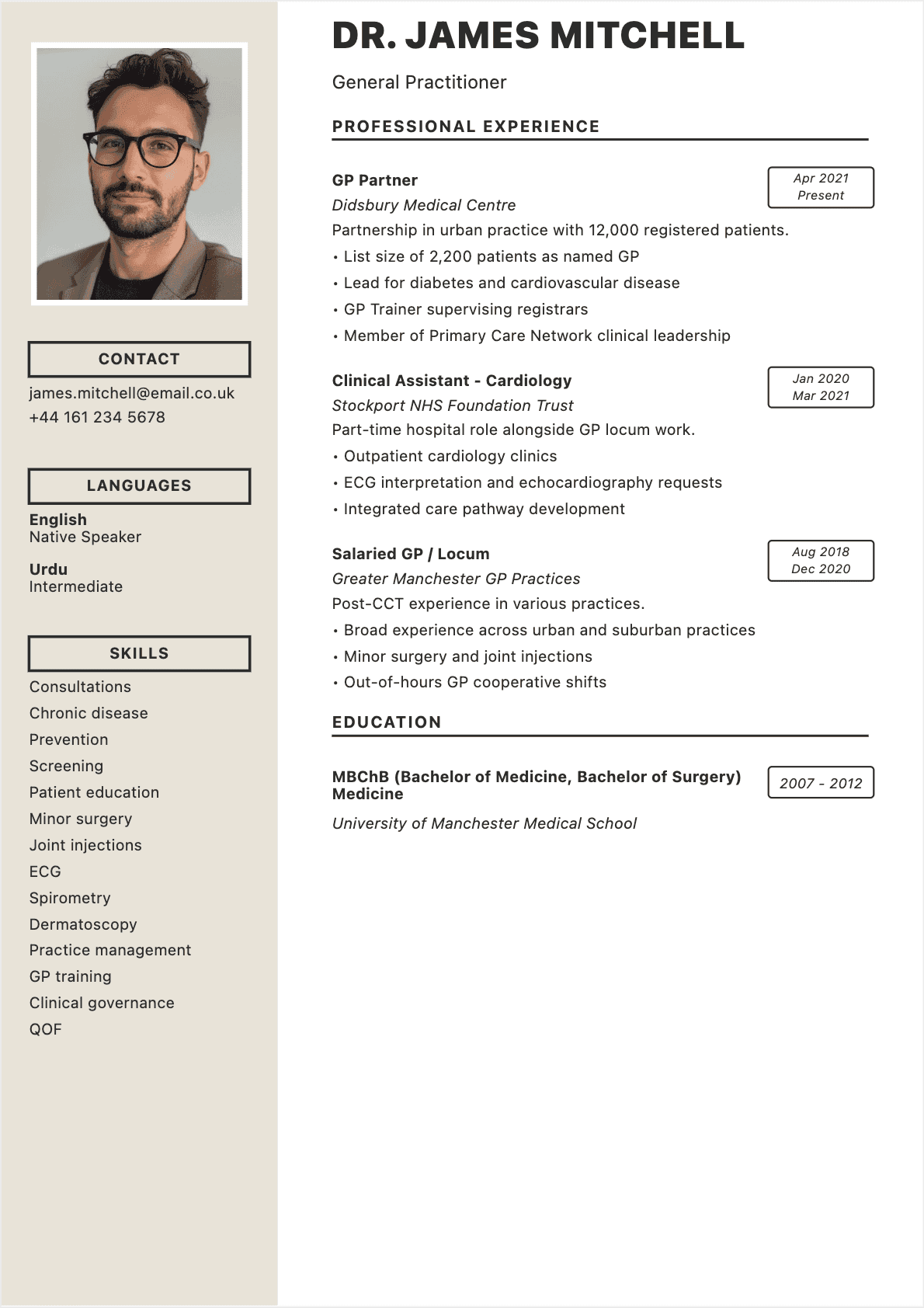

I spent three years watching candidates struggle with resume formatting before I understood the appeal of Google Docs. It was 2021, and I was reviewing applications for a marketing coordinator position at a mid-size agency in Chicago. One candidate sent a beautifully designed PDF that rendered as a garbled mess in our applicant tracking system. Another sent a Word document where the margins had shifted so dramatically that half her bullet points were cut off. But the third candidate, who built her resume directly in Google Docs and exported it as a clean PDF, had a file that looked exactly the way she intended it to look on every screen and in every system I opened it on.
That experience stuck with me throughout my career in hiring and career coaching. Google Docs has quietly become one of the most practical tools for building a resume, not because it produces the flashiest designs, but because it solves the problems that actually cost people interviews: formatting inconsistencies, version control nightmares, and the friction of needing expensive software just to update a document. Over 1.8 billion people use Google Workspace products today, and Google Docs resume templates are among the most searched tools on the platform.
This guide covers everything you need to know about creating, customizing, and optimizing a Google Docs resume in 2026. Whether you are building your first resume or overhauling an existing one, these steps will help you produce a professional, ATS-compatible document without spending a dime. For a broader foundation on resume writing principles, start with our complete guide to writing a resume. 📝
Why Use Google Docs for Your Resume?
Before diving into templates and formatting, it is worth understanding why Google Docs has become such a popular choice for resume building in 2026. The answer comes down to three things: accessibility, simplicity, and collaboration.
Google Docs is completely free. You do not need to purchase Microsoft Office, subscribe to a design tool, or download any software. All you need is a Google account, which over 1.8 billion people already have. Your resume lives in the cloud, accessible from any device with an internet connection, whether you are on a laptop at home, a tablet at a coffee shop, or your phone in the back of an Uber heading to an interview. ☁️
The collaboration features are another major advantage. If you are working with a career coach, a mentor, or a friend who is reviewing your resume, Google Docs makes it effortless to share the document, leave comments, suggest edits, and track changes in real time. I have coached hundreds of job seekers over the past decade, and the ability to leave inline suggestions on someone's Google Doc resume and have them implement changes live during a session has saved countless hours compared to emailing Word documents back and forth.
Google Docs also handles version history automatically. Every edit you make is saved, and you can revert to any previous version at any time. This is invaluable when you are tailoring your resume for multiple job applications and need to track which version you sent where. There is no risk of accidentally overwriting your master copy or losing changes because you forgot to save.
Finally, Google Docs exports cleanly to PDF, which is the preferred format for most job applications and ATS systems. The export process preserves your formatting reliably, avoiding the font-substitution and margin-shifting problems that plague Word documents sent between different operating systems.
Pros and Cons of Google Docs Resumes
No tool is perfect for every situation. Here is an honest assessment of where Google Docs excels and where it falls short for resume building. ⚖️
| Pros | Cons |
|---|---|
| 100% free with any Google account | Limited design capabilities compared to Canva or InDesign |
| Cloud-based: access from any device | Requires internet connection for full functionality |
| Built-in templates for quick starts | Template selection is smaller than dedicated resume builders |
| Real-time collaboration and commenting | Advanced formatting (columns, graphics) can be clunky |
| Automatic version history and autosave | Less precise layout control than Word or LaTeX |
| Clean PDF export for ATS compatibility | Some ATS systems prefer .docx over PDF |
| No software installation required | Font options are limited compared to desktop tools |
The bottom line: Google Docs is an excellent choice for most job seekers who need a clean, professional, ATS-friendly resume without investing in premium software. If you need heavily designed resumes with custom graphics and multi-column layouts, a dedicated online resume builder or design tool may serve you better. But for the vast majority of applications, especially in corporate, tech, finance, and government sectors, a well-crafted Google Docs resume will perform just as well as one made in any other tool.
How to Access Google Docs Resume Templates
Google Docs comes with a selection of free resume templates that provide a solid starting point. Here is how to find and use them. 📂
Accessing templates from Google Docs
- Go to docs.google.com and sign in to your Google account
- At the top of the page, click "Template gallery" (if you do not see it, click the three horizontal lines menu and select "Templates")
- Scroll down to the "Resumes" section, where you will find several pre-built templates
- Click on any template to open it as a new document in your Google Drive
- The template is now yours to edit freely. The original template remains unchanged in the gallery
Available Google Docs resume templates
As of 2026, Google Docs offers five main resume templates:
- **Coral: **A clean, modern layout with a subtle color accent and clear section dividers. Best for corporate and business roles.
- **Spearmint: **A minimal design with a left-aligned structure and green accent. Works well for academic and research positions.
- **Modern Writer: **A sleek template with bold typography and a contemporary feel. Good for creative and marketing roles.
- **Serif: **A traditional, classic design with serif fonts. Ideal for legal, finance, and executive positions.
- **Swiss: **A highly structured template with clear hierarchy and sans-serif fonts. Versatile enough for most industries.
Each template includes placeholder text that guides you through what to put in each section. Simply replace the placeholders with your own information, adjusting the length and detail as needed.
Third-party Google Docs resume templates
If the built-in templates do not meet your needs, hundreds of free and premium Google Docs resume templates are available from third-party sources. Sites like Goodocs, Template.net, and various career blogs offer templates you can copy directly into your Google Drive. When using third-party templates, always verify that the formatting exports cleanly to PDF before submitting it to employers.
Create Your Google Docs Resume Step by Step

Step-by-step process to create a resume in Google Docs
Whether you are using a template or starting from scratch, here is the complete process for building a professional Google Docs resume. 🛠️
Step 1: Set up your document
If starting from a blank document, configure these settings first:
- **Page margins: **Go to File > Page setup and set all margins to 0.5 to 1 inch. One inch is standard, but 0.5 to 0.75 inches gives you more space without looking cramped.
- **Font: **Choose a professional, ATS-friendly font. Our top recommendations: Calibri, Arial, Garamond, Cambria, or Roboto. Set the body text size to 10-12pt and your name to 16-20pt.
- **Line spacing: **Go to Format > Line & paragraph spacing and set it to 1.0 or 1.15. Single spacing keeps your resume compact while remaining readable.
- **Page size: **US Letter (8.5 x 11 inches) for US and Canadian applications. A4 for UK, European, and international applications.
For an in-depth guide on selecting the right typeface, read our article on the best fonts for your resume.
Step 2: Add your contact information
Place your full name at the top in a larger font size (16-20pt, bold). Below it, add your key contact details on one or two lines:
- Phone number
- Professional email address
- City and state (full street address is no longer necessary)
- LinkedIn profile URL (use a custom URL like linkedin.com/in/yourname)
- Portfolio or personal website, if relevant
Separate items with a pipe character (|) or a bullet point for clean visual separation. For example: "New York, NY | (555) 123-4567 | jane.doe@email.com | linkedin.com/in/janedoe"
Step 3: Write your professional summary
Add a 3-4 sentence summary directly below your contact information. This section should immediately communicate who you are, what you specialize in, and the value you bring. Include your target keyword naturally.
"Results-driven marketing manager with 7+ years of experience in demand generation, content strategy, and marketing automation. Proven track record of scaling inbound pipeline from $1.5M to $8M annually at two B2B SaaS companies. Expertise in HubSpot, Google Analytics, and data-driven campaign optimization. Seeking a senior marketing leadership role at a growth-stage technology company."
Step 4: Build your experience section
For each role, include the job title, company name, location, and dates of employment. Below each entry, add 3-5 bullet points that describe your accomplishments using action verbs and quantified results:
- Start each bullet with a strong action verb (Led, Developed, Increased, Managed, Implemented)
- Include specific metrics wherever possible (percentages, dollar amounts, team sizes, timeframes)
- Focus on impact and results, not just responsibilities
- Tailor your bullets to match the keywords and requirements of your target roles
In Google Docs, use the built-in bullet point formatting (Format > Bullets & numbering) rather than manually typing dashes or asterisks. This ensures consistent indentation and proper PDF export.
Step 5: Add education and additional sections
Include your education with degree, institution, and graduation year. If you are a recent graduate, add relevant coursework, honors, or GPA (if above 3.5). For experienced professionals, keep education brief and place it after your work experience. Add optional sections as relevant: certifications, technical skills, languages, volunteer work, or publications.
Best Google Docs Resume Templates for 2026
Choosing the right template depends on your industry, career level, and the impression you want to make. Here is a breakdown of the best options available right now. 🏆
For corporate and business roles
The Coral and Swiss templates are your best bets. They have clean lines, professional typography, and a structured layout that hiring managers in finance, consulting, operations, and general management expect to see. Both templates use minimal color, which is appropriate for conservative industries.
For creative and marketing roles
The Modern Writer template offers a bit more visual personality without crossing into unprofessional territory. For roles in marketing, design, media, or communications, a template with slightly more character can help you stand out. Just ensure the design does not overpower the content.
For academic and research positions
The Spearmint template, with its minimal design and clear hierarchy, works well for academic CVs and research-oriented resumes. Its clean structure accommodates the longer format that academic applications often require.
For entry-level and early career
If you are building your first resume with limited experience, the Serif template provides a traditional, polished look that compensates for a shorter work history. Its classic design conveys professionalism and seriousness. For additional guidance on building a resume without extensive experience, see our article on writing a resume with no experience.
Customizing Your Google Docs Resume: Fonts, Colors, Layout
Templates are starting points, not finished products. Customizing your Google Docs resume makes it uniquely yours while maintaining a professional appearance. Here is how to adjust the three most important design elements. 🎨
Fonts
Google Docs offers a solid selection of professional fonts. Stick with these ATS-safe options:
- **Sans-serif: **Arial, Calibri, Roboto, Lato, Open Sans, Montserrat
- **Serif: **Garamond, Cambria, Georgia, Times New Roman, Merriweather
Use one font family throughout your resume. You can differentiate sections using size and weight (bold) rather than switching fonts. Your name should be 16-20pt, section headings 12-14pt bold, and body text 10-12pt regular. Never go below 10pt for body text, as it becomes difficult to read in print and on screen.
Colors
A single accent color can make your resume visually distinctive without being distracting. Use color sparingly for:
- Section headings
- Your name
- Horizontal divider lines
- Icons or small design elements
Stick to professional, muted tones: navy blue (#003366), dark teal (#006666), charcoal (#333333), or deep burgundy (#660033). Avoid bright reds, oranges, or neon colors. Remember that many resumes are printed in black and white, so your color choices should enhance but not be essential to readability.
Layout and spacing
Consistent spacing is what separates a polished resume from an amateur one. In Google Docs:
- Add 6-12pt spacing after each section heading (Format > Line & paragraph spacing > Add space after paragraph)
- Use consistent indentation for bullet points
- Align all dates to the right margin using a right-aligned tab stop (Format > Tabs)
- Add horizontal lines between sections using Insert > Horizontal line, or a simple border-bottom on a paragraph
For a deeper understanding of how layout affects both readability and ATS compatibility, explore our guide to the best resume formats.
Making Your Google Docs Resume ATS-Compatible
Applicant tracking systems process your resume before a human ever sees it. If your document is not ATS-compatible, it does not matter how impressive your qualifications are. Here is how to make sure your Google Docs resume passes the digital gatekeeper. 🤖
Use standard section headings
ATS systems look for specific section labels to categorize your information. Use these exact headings:
- "Professional Experience" or "Work Experience" (not "Where I've Worked" or "Career Journey")
- "Education" (not "Academic Background" or "Learning")
- "Skills" (not "What I'm Good At" or "Toolkit")
- "Certifications" (not "Credentials" or "Qualifications")
- "Professional Summary" or "Summary" (not "About Me" or "Who I Am")
Creative headings may look interesting, but they confuse ATS parsers and can result in your information being miscategorized or ignored entirely.
Formatting rules for ATS
- **No text boxes or tables for content layout. **ATS systems often cannot read content inside text boxes, and tables can scramble the reading order. Use simple paragraphs and bullet points.
- **No headers or footers for critical information. **Many ATS systems skip header and footer content. Keep your name and contact information in the main body of the document.
- **No images, charts, or icons. **ATS cannot interpret visual elements. Any information conveyed through images will be lost.
- **Use standard bullet points. **Google Docs' built-in bullets are ATS-safe. Custom symbols, checkmarks, or emojis in bullet points may not parse correctly.
- **Save and submit as PDF. **When you go to File > Download > PDF, Google Docs creates a text-based PDF that ATS systems can read. This is different from a scanned PDF, which is just an image and cannot be parsed.
Keyword optimization
The single most important thing you can do for ATS compatibility is match your resume's language to the job posting:
- Read the job description carefully and identify the key skills, tools, and qualifications mentioned
- Include those exact terms in your resume, using the same phrasing the employer uses
- If the job posting says "project management," do not write "managing projects." Use the exact phrase.
- Include both spelled-out terms and acronyms where applicable (e.g., "Search Engine Optimization (SEO)")
- Place keywords naturally throughout your summary, experience bullets, and skills section
For an AI-assisted approach to optimizing your resume for ATS, check out our guide on AI resume builders that can help identify keyword gaps.
Common Google Docs Resume Mistakes to Avoid

Common mistakes and fixes when creating a resume in Google Docs
After reviewing thousands of resumes built in Google Docs, these are the mistakes I encounter most frequently, and the ones that have the most impact on whether a resume gets results. ⚠️
- **Using tables for the entire layout. **It is tempting to use a two-column table to organize your resume in Google Docs, but this creates major ATS problems. The system may read across rows instead of down columns, scrambling your content. Use single-column layouts with clear section breaks instead.
- **Forgetting to check the PDF export. **What you see in Google Docs is not always what appears in the exported PDF. Line breaks may shift, bullet points may reflow, and fonts may render slightly differently. Always download as PDF and review the file before submitting.
- **Overcrowding the page. **Google Docs makes it easy to keep adding content, but a cramped resume with no white space is exhausting to read. Maintain 0.5-inch minimum margins and use spacing between sections to create visual breathing room.
- **Using the template without customizing it. **Google Docs templates are widely used, and hiring managers see the same Coral or Swiss template dozens of times. At minimum, change the font, adjust the color accent, and modify the section layout to make it your own.
- **Inconsistent formatting. **Mixing font sizes, using bold in some section headings but not others, or varying bullet point styles within the same section signals a lack of attention to detail. Use Google Docs' built-in Styles feature (Format > Paragraph styles) to maintain consistency.
- **Including a photo on your resume. **In the US and UK, resume photos are generally not recommended and can trigger unconscious bias. Unless you are in a field where headshots are standard (acting, modeling), leave the photo off your Google Docs resume.
- **Not tailoring for each application. **The biggest advantage of Google Docs is how easy it is to duplicate and customize your resume. Make a copy (File > Make a copy) for each job application and tailor the summary, keywords, and bullet points to match the specific posting.
- **Ignoring file naming. **Name your file professionally: "FirstName-LastName-Resume-2026.pdf." Avoid generic names like "Resume.pdf" or "Document1.pdf." Recruiters download dozens of files daily, and a clear filename helps yours stand out.
For a broader look at resume pitfalls that affect all formats, see our guide to the top 10 most common resume mistakes.
Google Docs vs Online Resume Builders: Which Is Better?

Comparison of Google Docs vs Word vs online resume builders
This is one of the most common questions I get from job seekers. The answer depends on what you need, how much control you want, and what your budget looks like. 🤔
| Feature | Google Docs | Online Resume Builder |
|---|---|---|
| Cost | Free | Free tier with limits; $10-30/month for premium |
| Design options | 5 built-in templates; moderate customization | 50-500+ templates; drag-and-drop design |
| ATS compatibility | High (with proper formatting) | Varies widely by platform |
| Ease of use | Moderate; requires manual formatting | High; guided step-by-step process |
| Content guidance | None (blank canvas) | Built-in suggestions and examples |
| Collaboration | Excellent (real-time sharing and comments) | Limited or none |
| Export formats | PDF, DOCX, ODT, TXT, HTML | Usually PDF; some offer DOCX |
| Data ownership | Full ownership in your Google Drive | Stored on platform; may lose access if subscription ends |
**My recommendation: **Start with Google Docs if you are comfortable with basic document formatting and want full control over your resume. The learning curve is lower than you think, and the output is every bit as professional as most resume builders. If you prefer a more guided experience with pre-built content suggestions, explore our online resume builder guide to find the right tool. Many job seekers end up using both: a Google Doc as their master resume and an online builder for design-heavy versions.
Exporting and Sharing Your Google Docs Resume
Creating your resume is only half the battle. How you export and share it matters more than most people realize. 📤
Exporting as PDF
PDF is the default choice for resume submissions, and for good reason:
- In Google Docs, go to File > Download > PDF Document (.pdf)
- Open the downloaded PDF and review every page carefully. Check that fonts rendered correctly, bullet points are aligned, and no text is cut off at margins
- Verify the file size is reasonable (under 2MB is ideal; most resumes will be well under 500KB)
- Name the file professionally: "FirstName-LastName-Resume.pdf"
Exporting as Word (.docx)
Some employers specifically request Word format, and certain ATS systems handle .docx files better than PDFs:
- Go to File > Download > Microsoft Word (.docx)
- Open the file in Word (or a free alternative like LibreOffice) to verify formatting
- Note that fonts may change if the recipient does not have the same fonts installed. Stick to universal fonts like Arial, Calibri, or Times New Roman to minimize this risk
Sharing via link
In some situations, you may want to share your resume as a Google Docs link rather than a file:
- Click the "Share" button and change access to "Anyone with the link can view"
- Never share edit access unless you specifically want the recipient to make changes
- Consider sharing a link to the PDF preview (File > Print preview > Share) for a cleaner viewing experience
- Be aware that shared links include your Google account name, so ensure your account displays your professional name
Advanced Tips for a Standout Google Docs Resume
Once you have the basics down, these advanced techniques will elevate your Google Docs resume from good to exceptional. 🚀
Use Google Docs add-ons
The Google Workspace Marketplace includes several free add-ons that enhance your resume-building process:
- **Grammarly: **Catches grammar errors, suggests stronger word choices, and improves clarity. Essential for catching the typos that spell-check misses.
- **Lucidchart Diagrams: **If you need to include a simple skills chart or process diagram, this add-on lets you create and embed visuals directly. Use sparingly, and only in versions you will not submit to ATS.
- **Doc Tools: **Provides advanced formatting options like changing text case, sorting lists, and highlighting duplicates
Master keyboard shortcuts
Speed up your resume editing with these essential Google Docs shortcuts:
- **Ctrl+Shift+7 **(Cmd+Shift+7 on Mac): Toggle numbered list
- **Ctrl+Shift+8 **(Cmd+Shift+8 on Mac): Toggle bullet list
- **Ctrl+B / Ctrl+I / Ctrl+U: **Bold, italic, underline
- **Ctrl+Shift+V: **Paste without formatting (essential when copying content from other sources)
- **Ctrl+Alt+1/2/3: **Apply Heading 1/2/3 styles
Create a master resume system
The most effective approach to resume management in Google Docs is maintaining a three-document system:
- **Master resume: **A comprehensive document containing every role, accomplishment, skill, and certification you have ever had. This is never submitted anywhere; it is your source of truth.
- **Targeted resume template: **A polished, one-to-two-page version formatted and ready for customization. When a new job opening catches your eye, duplicate this file.
- **Application-specific copies: **For each application, make a copy of your targeted template and customize the summary, keywords, and bullet points to match the job posting. Store these in a dedicated Google Drive folder with the company name and date.
This system ensures you always have a clean starting point while maintaining a record of every version you have submitted. It also makes it trivially easy to pull relevant content from your master resume into any targeted version.
Optimize for both digital and print
Your resume may be viewed on screen, printed in black and white, or projected in a meeting room. Test all three scenarios:
- Print your resume and check that text is readable, margins are clean, and nothing is cut off
- View the PDF on both a desktop monitor and a mobile phone to ensure readability at different sizes
- Convert to black and white to verify that your color accents do not make text illegible when color is removed
- Check that links in your contact section are clickable in the PDF version
Final Takeaway: Build Your Google Docs Resume in 15 Minutes
If you have been putting off updating your resume because it feels like a major project, here is the truth: you can create a solid, professional Google Docs resume in 15 minutes. Not a perfect one, but a strong starting point that you can refine over time. Here is the quick-start plan. ⏱️
- **Minutes 1-2: **Open Google Docs, select the Swiss or Coral template, and replace the name and contact information with your own.
- **Minutes 3-5: **Write a 2-3 sentence professional summary. Focus on your title, years of experience, core specialization, and one headline achievement.
- **Minutes 6-10: **Add your two most recent roles with 3 bullet points each. Start each bullet with an action verb and include at least one metric per role.
- **Minutes 11-13: **Add your education and 6-10 of your strongest skills relevant to your target roles.
- **Minutes 14-15: **Download as PDF, review the output, and save both the Google Doc and the PDF to a dedicated folder in your Drive.
You now have a working resume. From here, you can refine the content, add more roles, customize for specific applications, and improve the formatting at your own pace. The important thing is that the foundation exists and is ready to be used the moment an opportunity appears.
Google Docs is not the flashiest resume tool on the market, and it does not pretend to be. What it offers is something more valuable: reliability, accessibility, and the clean simplicity that both hiring managers and ATS systems appreciate. A well-built Google Docs resume demonstrates that you understand what matters in a job application: clear communication, relevant content, and professional presentation.
Here are the key principles to take away:
- **Start with a template, then customize it **to make it uniquely yours. Change fonts, colors, and layout to stand out from the millions of other Google Docs resumes out there.
- **Prioritize ATS compatibility **by using standard section headings, avoiding tables and text boxes for layout, and exporting as a clean PDF.
- **Tailor every application **by duplicating your master template and customizing the summary, keywords, and bullet points for each job posting.
- **Test your export **by downloading the PDF and reviewing it on multiple devices before submitting.
- **Maintain a master resume system **in Google Drive so you always have a comprehensive source of truth and a clean starting point for new applications.
- **Keep it simple **and let your content do the heavy lifting. Clean formatting and strong achievements will always outperform flashy design.
**Ready to take your resume further? **Explore our resume examples library for industry-specific templates, or use our online resume builder guide to compare Google Docs with dedicated resume platforms. Your next career move is one well-crafted resume away. 🌟